Schooleasy - Assessment Module Overview
A visual guide to the main windows of the Schooleasy Assessment Module, what each screen shows, and what the user should do in every case.
Trial Version
Download the free trial version to explore Schooleasy features for a limited time.
Download Trial VersionAssessment Dashboard – Students Overview
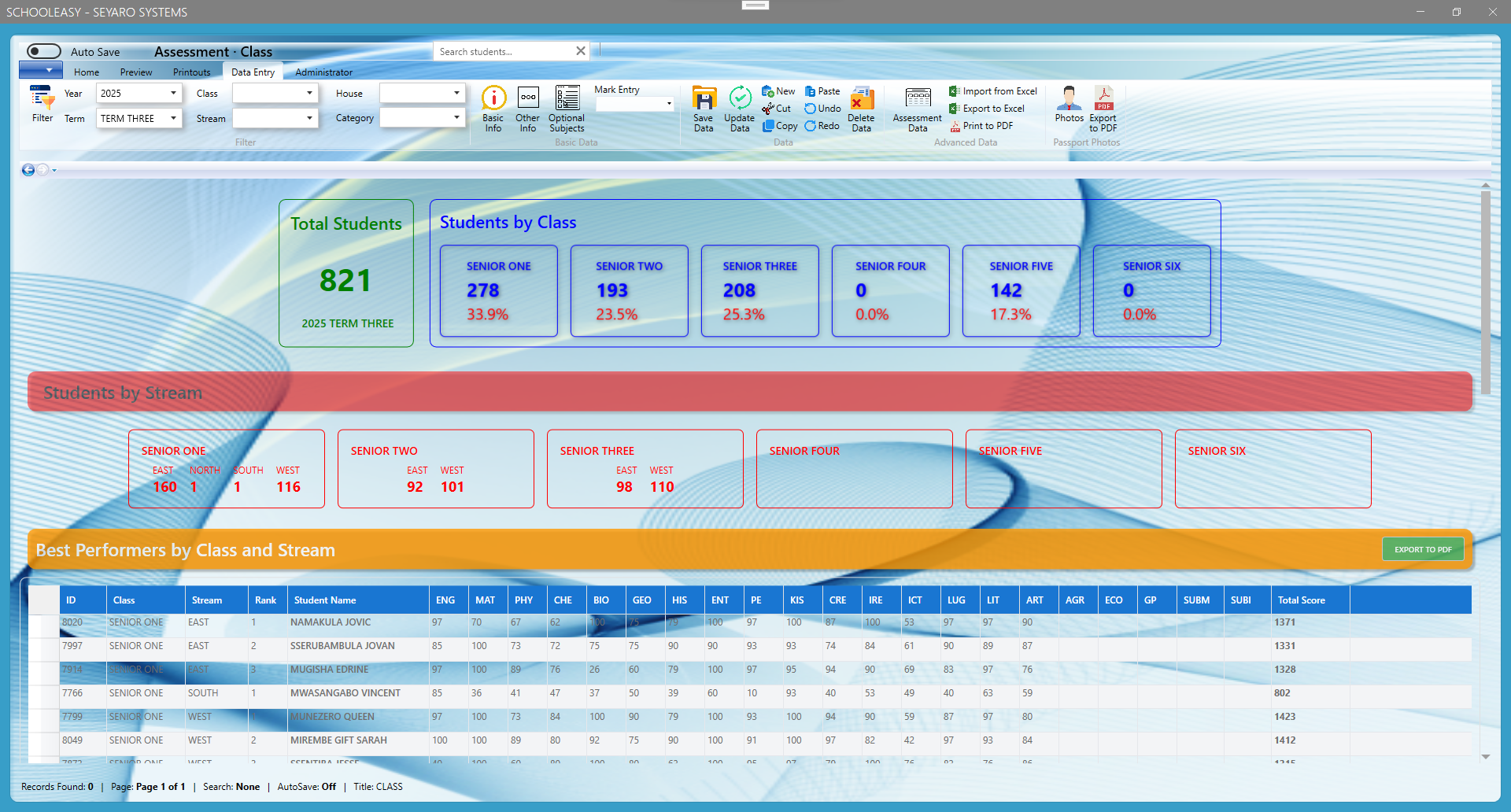
Shows total students, distribution by class (S1–S6), and by stream, plus a grid of best performers by class and stream, as well as the new commers.
What this window shows
- Overall student count for a selected year and term.
- Class-by-class totals and percentages.
- Students-by-stream summary.
- Top-performing students and their subject scores.
What the user should do
- Choose Year and Term from the filter bar.
- Select Class, Stream, or other filters as needed.
- Use it in meetings to discuss general performance trends.
- Click Export to PDF to generate a printable overview.
Mark Entry – Detailed Scores per Student
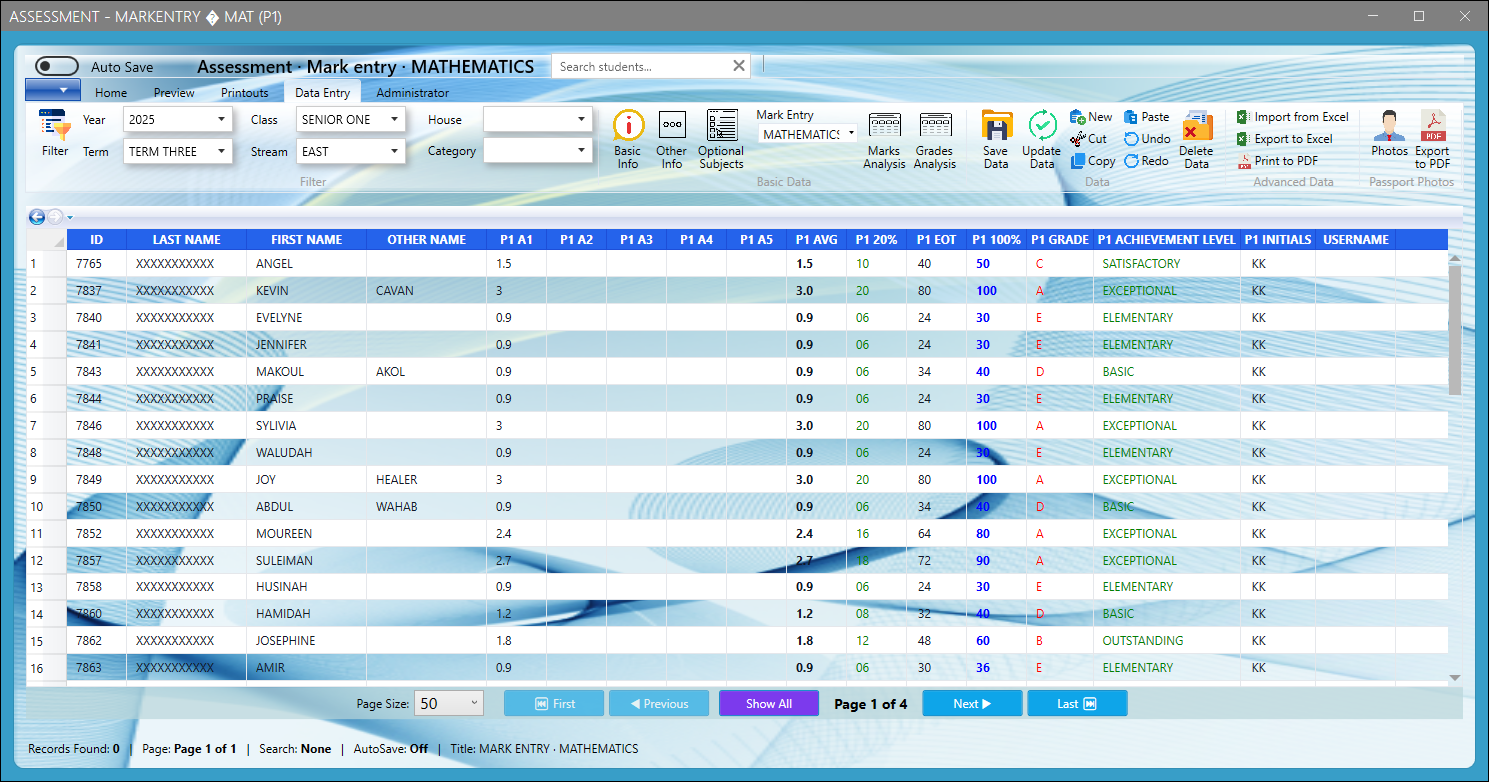
Main grid for entering and reviewing individual student marks in a specific subject.
What this window shows
- List of students for the selected year, term, class and stream.
- Continuous assessment marks, exam marks and percentages.
- Calculated subject grades and achievement levels.
What the user should do
- Select Year, Term, Class, Stream and Subject.
- Enter or update marks directly in the grid.
- Click Save Data for new marks or Update Data after editing.
- Use Import from Excel to bulk-load marks or Export / Print for reports.
Student Rankings by Total Score
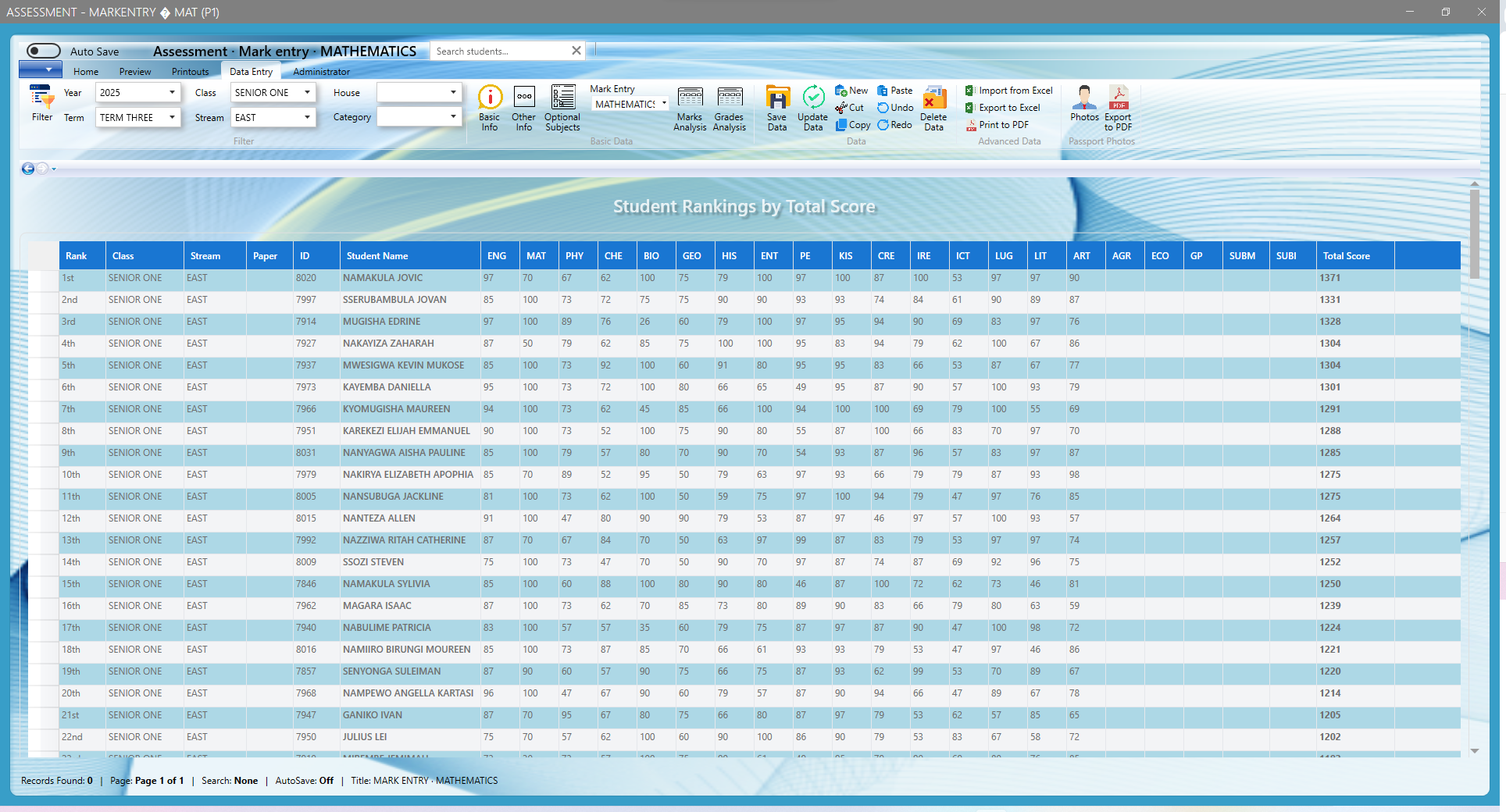
Merit list of students ordered by their total marks across subjects.
What this window shows
- Rank, class, stream and total score for each student.
- Subject scores contributing to the total.
- Full ordered list suitable for merit lists.
What the user should do
- Apply the appropriate year, term, class and stream filters.
- Identify top performers and students needing support.
- Export or print the list for staff meetings or noticeboards.
Student Rankings by Total Grade
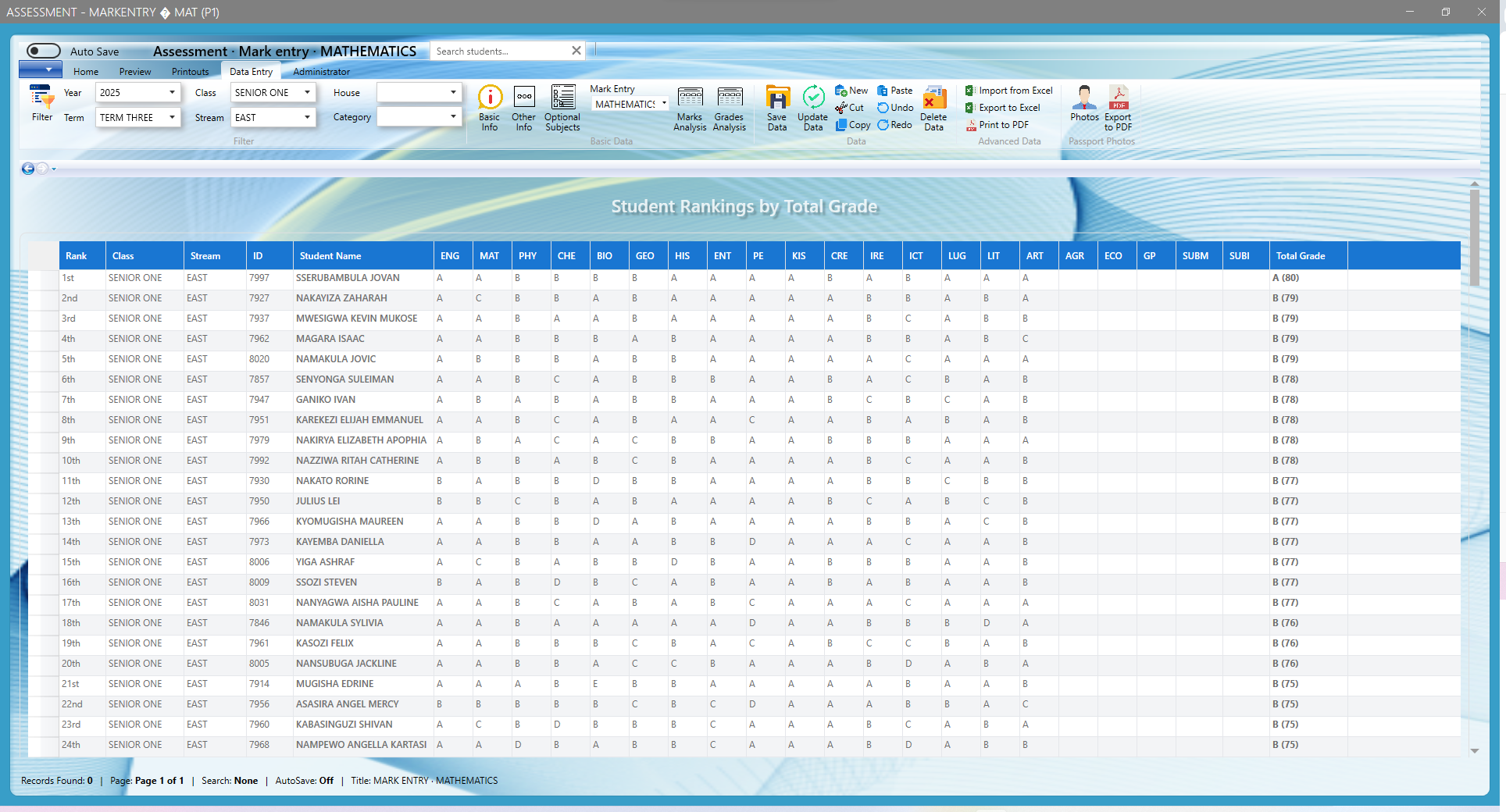
Ranking view focusing on grades (A, B, C, …) rather than raw scores.
What this window shows
- Grades for each subject per student.
- Overall total grade and position.
- A clean layout used for official grade-based ranking.
What the user should do
- Filter by year, term, class and stream.
- Use grades to prepare final reports and board results.
- Print or export rankings for administrative records.
Class Rankings – Senior Five Summary
Focused ranking view for Senior Five, with color highlighting for positions.
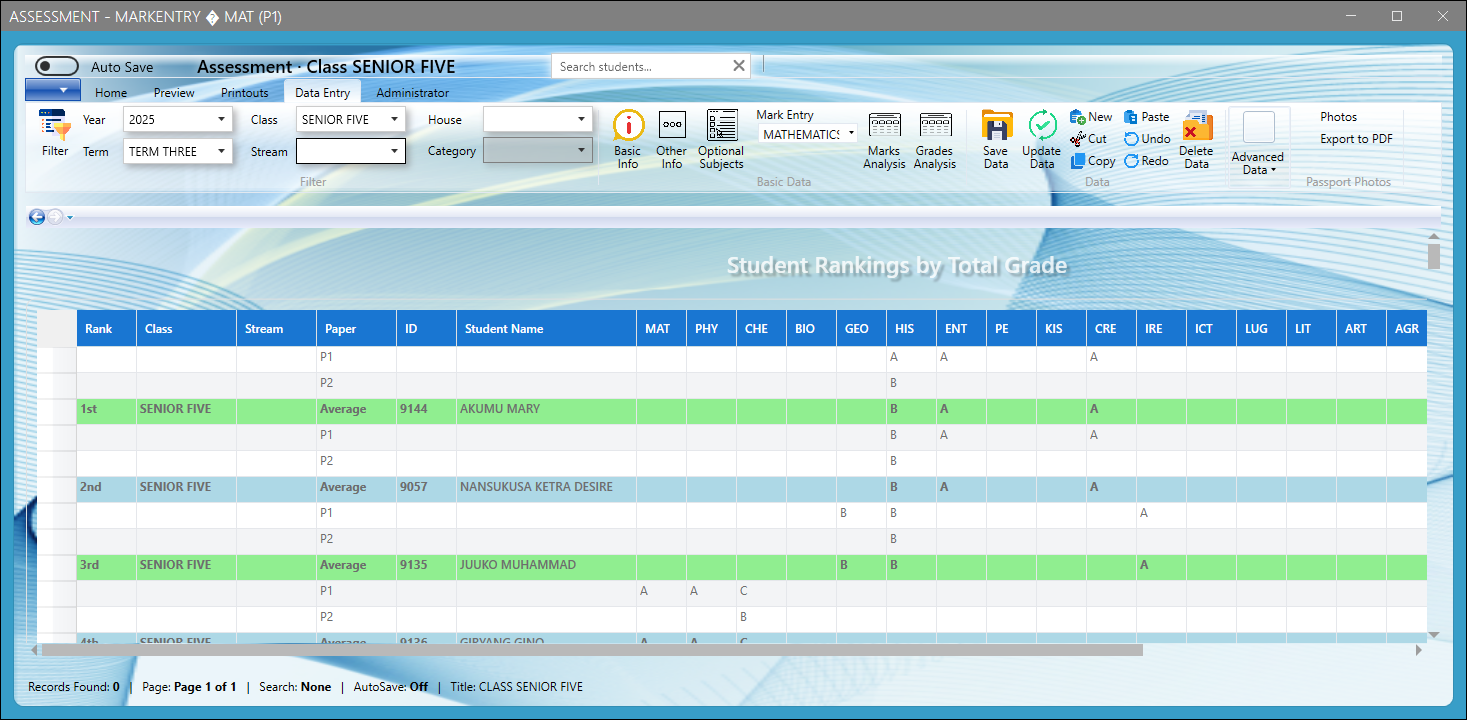
What this window shows
- Rank and subject grades for Senior Five students.
- Average paper and combination results.
- Visual emphasis on top positions using colored rows.
What the user should do
- Select Senior Five plus the correct year, term and stream.
- Use it in class meetings, HOD meetings and parent engagement.
- Identify high achievers and students needing targeted support.
Excel Import – Basic Information (In-App Preview)
Import preview showing student basic information rows being added or updated.
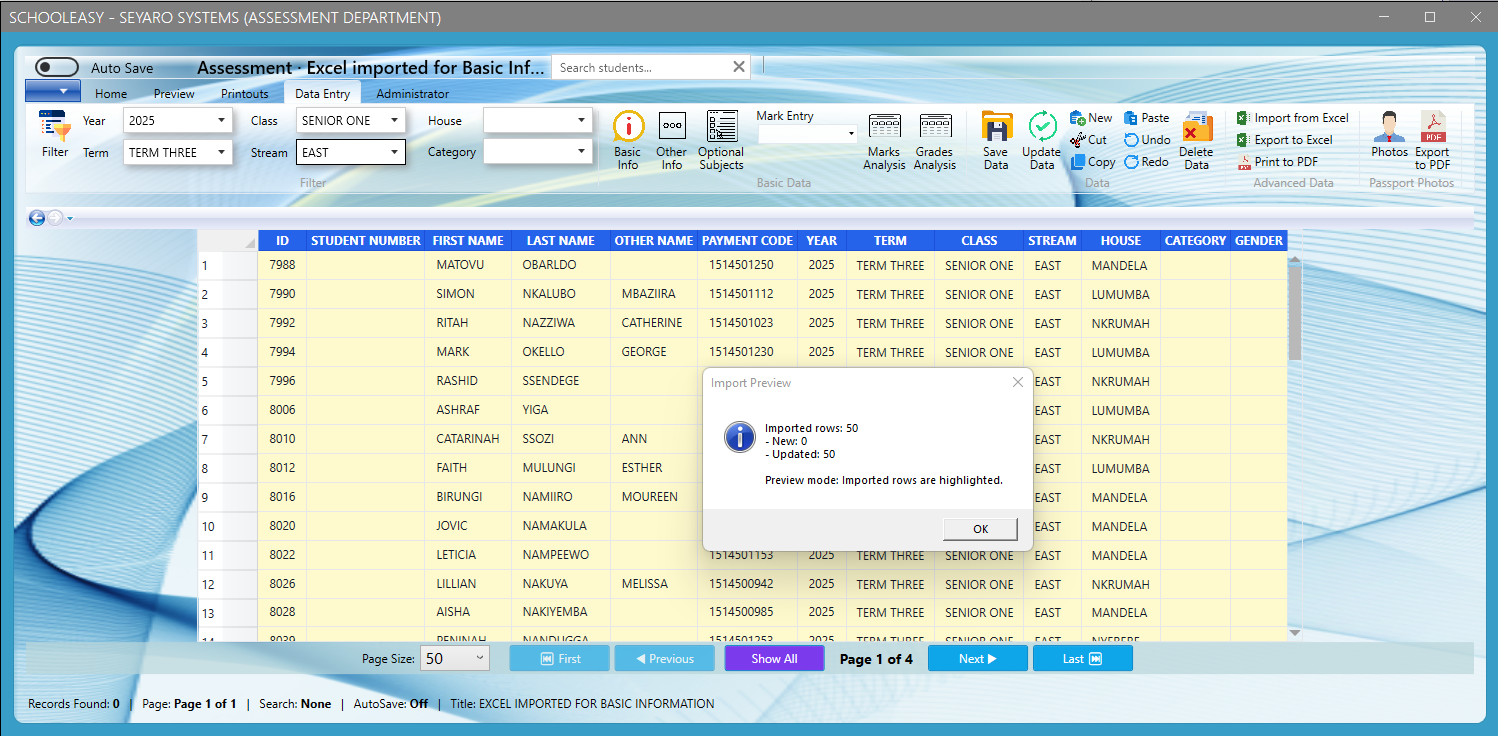
What this window shows
- Imported rows highlighted in the grid.
- A summary dialog with number of new and updated records.
- Core fields such as student number, names, class, stream, house and gender.
What the user should do
- Verify that highlighted rows correspond to the correct students.
- Check the preview summary before saving.
- Proceed to save to commit the imported data into the database.
SIMS Login – Multi-Department Access
Central login page for Enrollment, Academic, Information, Attendance and Finance modules.
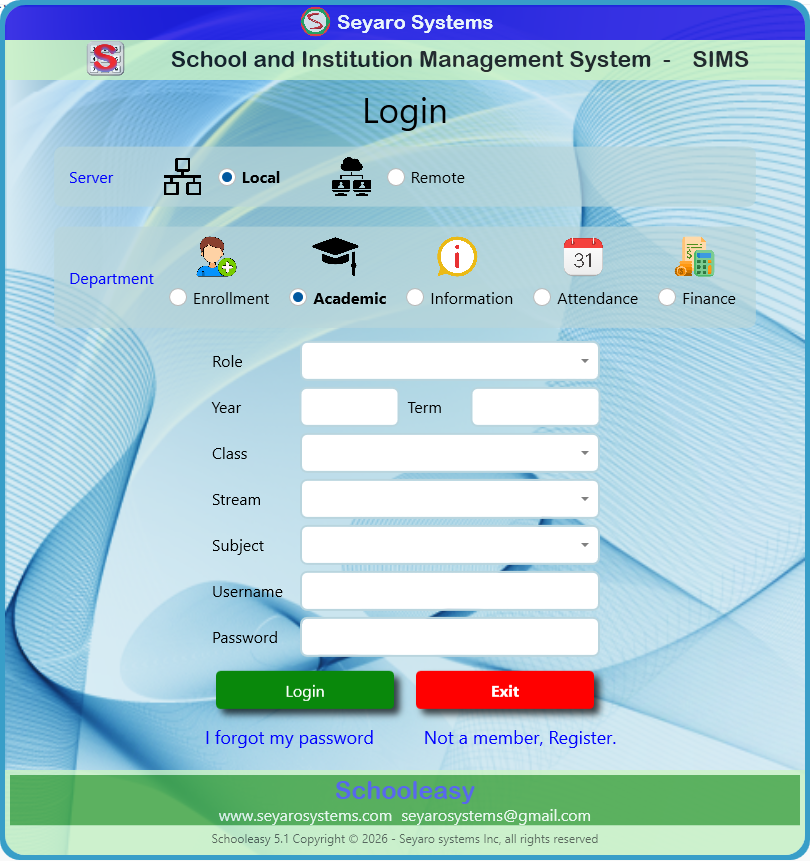
What this window shows
- Local vs Remote server options.
- Department selection icons.
- Fields for role, year, term, class, stream, subject, username and password.
What the user should do
- Choose Local or Remote server depending on deployment.
- Select the correct Department (e.g. Academic or Finance).
- Fill in role and academic context (year/term/class/stream/subject).
- Enter username and password then click Login.
- Use “I forgot my password” or “Not a member, Register” if needed.
PDF Export – Completion Message
Confirmation dialog indicating that a ranking or report has been exported successfully.
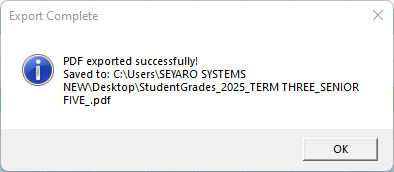
What this window shows
- A message “PDF exported successfully!”.
- The full path and file name of the generated PDF.
What the user should do
- Click OK to close the dialog.
- Browse to the indicated folder (e.g., Desktop) to open the PDF.
- Send, print or archive the exported file.
Rankings PDF – Student Rankings by Total Grade
The exported PDF opened in a PDF reader, ready for printing or electronic distribution.
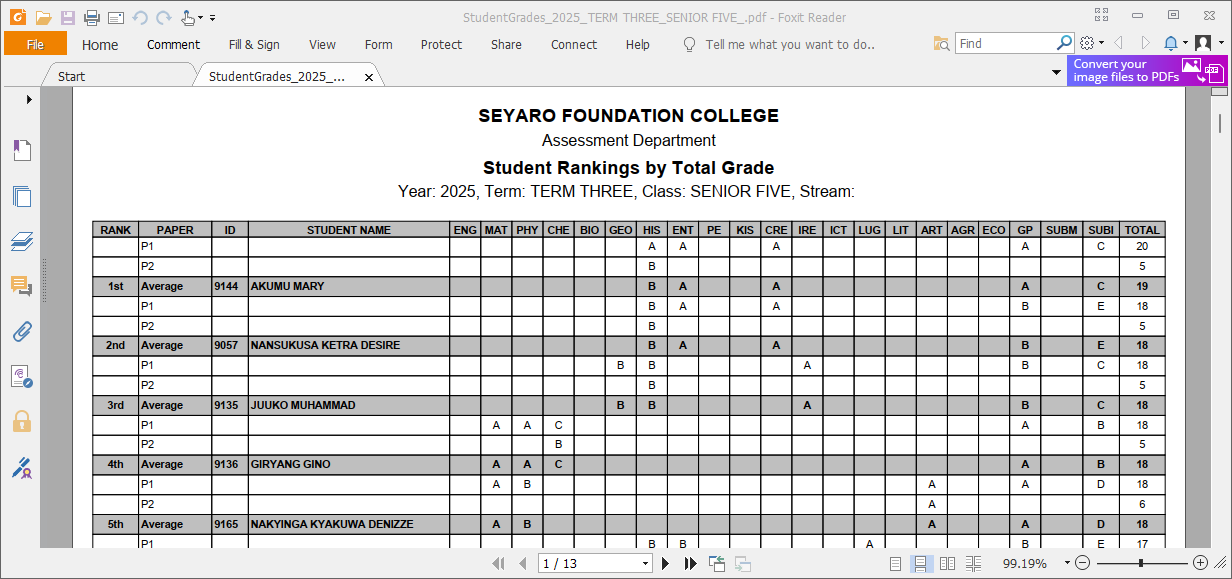
What this window shows
- School header and assessment department caption.
- Student rankings by total grade with subject columns.
- Multi-page report with navigation controls.
What the user should do
- Review the report to ensure ranking and grades are correct.
- Print hard copies, save to network folders or email to stakeholders.
- Keep a soft copy as part of school records.
Basic Information, Subject Selection
Pdf printout showing a list of students with their basic information and subject choices.
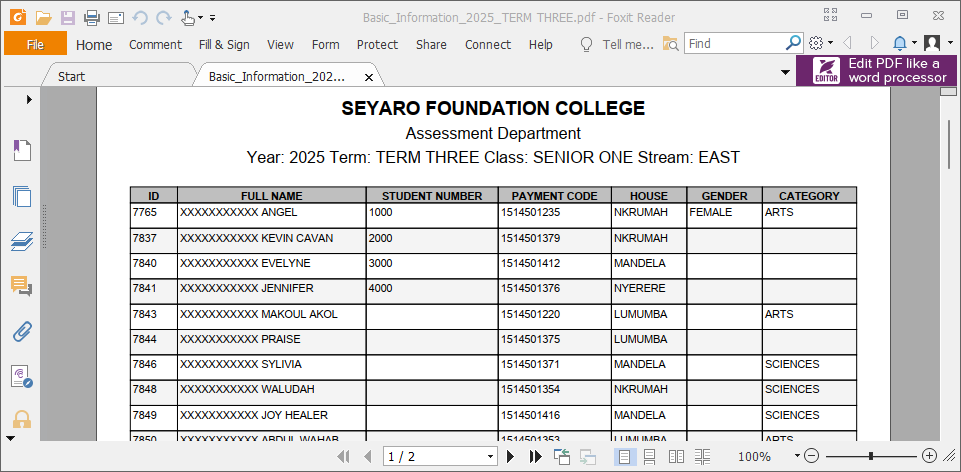
What this window (windows) shows
- Student bio details, house, payment code, days attended.
- Optiona subjects chosen and other basic information.
What the user should do
- Select year, term, class, stream and student from the filters.
- Select Export to PDF.
Excel File – Basic Information Import Sheet
External Excel workbook used to prepare student basic information before importing into Schooleasy.
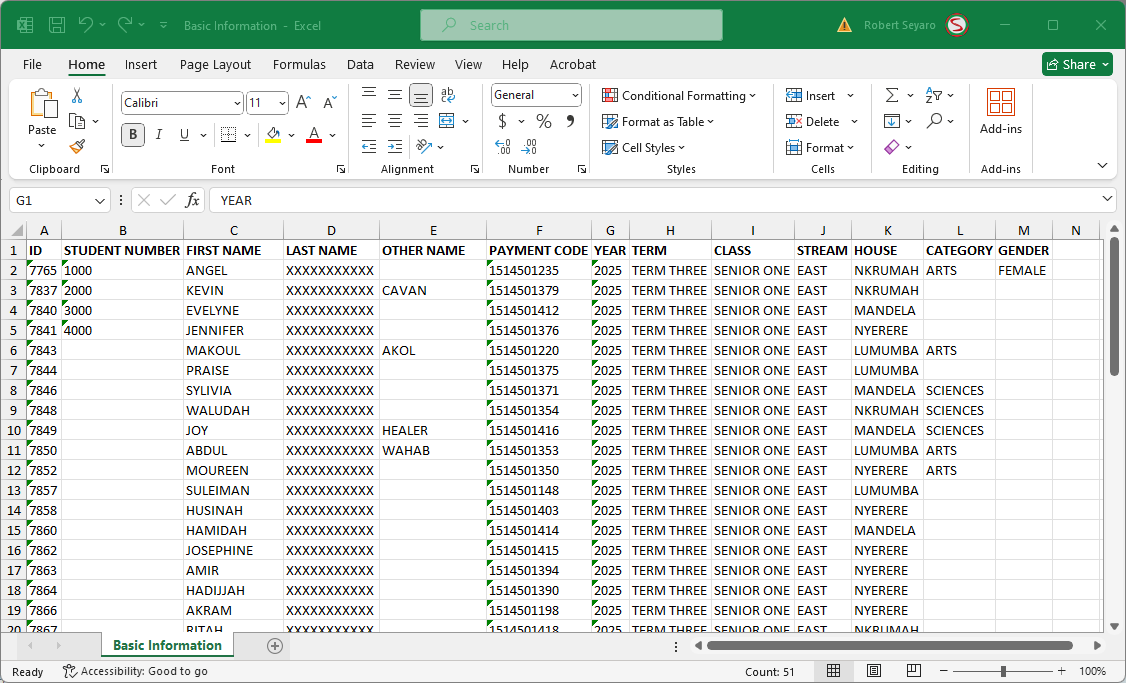
What this window shows
- Columns such as ID, student number, names and payment code.
- Year, term, class, stream, house, category and gender.
- A clean template for data entry and validation.
What the user should do
- Fill in or update student data in Excel.
- Ensure each column matches the required Schooleasy layout.
- Save the file, then use the in-app Import window to load it.
- Use Excel filters/validation to clean data before import.
Basic Information Data entry grid
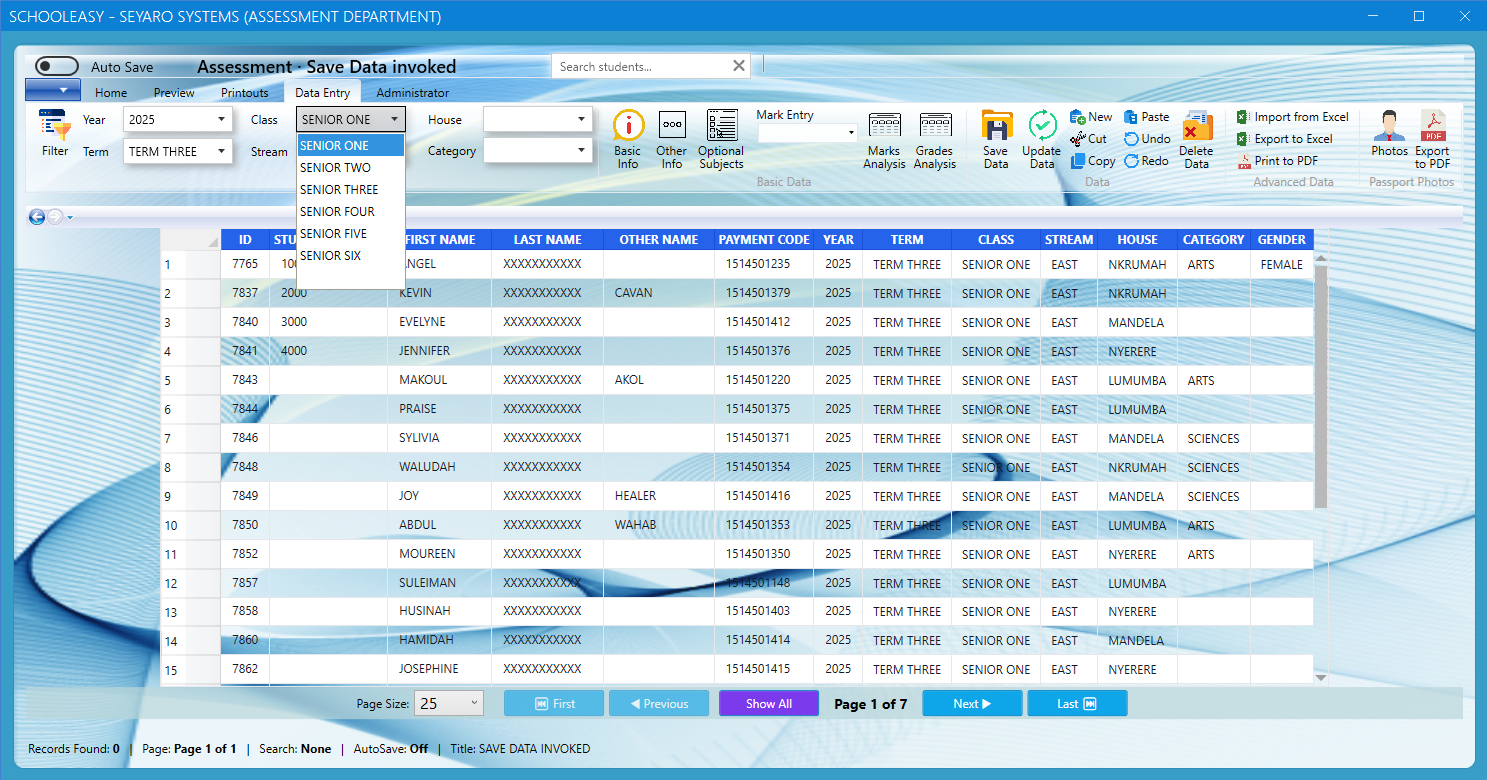
What this window shows
- Columns such as ID, student number, names and payment code.
- Year, term, class, stream, house, category and gender.
- A clean template for data entry and validation.
What the user should do
- Fill in or update student data in Excel.
- Ensure each column matches the required Schooleasy layout.
- Save the file, then use the in-app Import window to load it.
- Use Excel filters/validation to clean data before import.
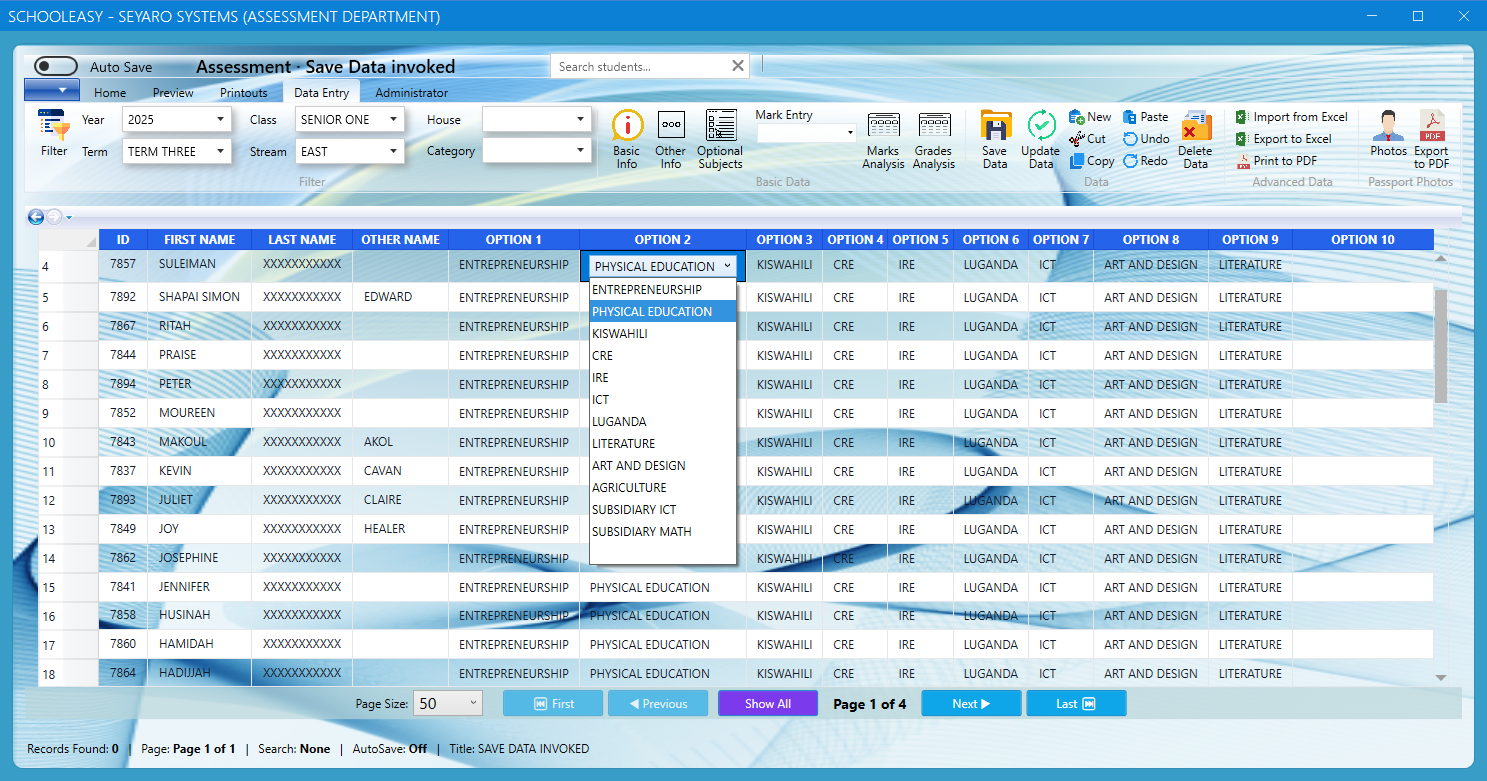
Optional Subjects Data entry grid
What this window shows
- Columns such as ID, student number, names and payment code.
- Year, term, class, stream, house, category and gender.
- A clean template for data entry and validation.
What the user should do
- Fill in or update student data in Excel.
- Ensure each column matches the required Schooleasy layout.
- Save the file, then use the in-app Import window to load it.
- Use Excel filters/validation to clean data before import.
Trial Version
Download the free trial version to explore Schooleasy features for a limited time.
Download Trial Version